Quick start from GraphEdit
To try the encoder mode instead
Insert the "Datastead Encoder" filter rather than the "Datastead Multipurpose Encoder", connect the same pins, then right-click it to open its encoder settings page. No command line is involved. See Encoder mode.
The steps below use the FFmpeg command-line mode:
- run GraphEdit -> Graph -> Insert Filters -> DirectShow Filters,
- locate the "Datastead Multipurpose Encoder" filter, double-click on it to insert it,
- insert the video source filter (e.g. a Webcam) and/or the audio source filter (e.g. a microphone),
- connect the video output pin (if any) to the Multipurpose video input pin,
- connect the audio output pin (if any) to the Multipurpose audio input pin,
- right-click on the "Datastead Multipurpose Encoder" filter, and enter the command line, optionally preceded by the reserved keywords,
- run the graph.
Examples of a very minimalistic command line that can be tested "out of the box":
- with console, for debugging purpose:
SHOWCONSOLE ffmpegLGPL.exe -i %PIPE% myclip.webm
- or not visible, like a normal DirectShow sink filter:
ffmpegLGPL.exe -i %PIPE% myclip.webm
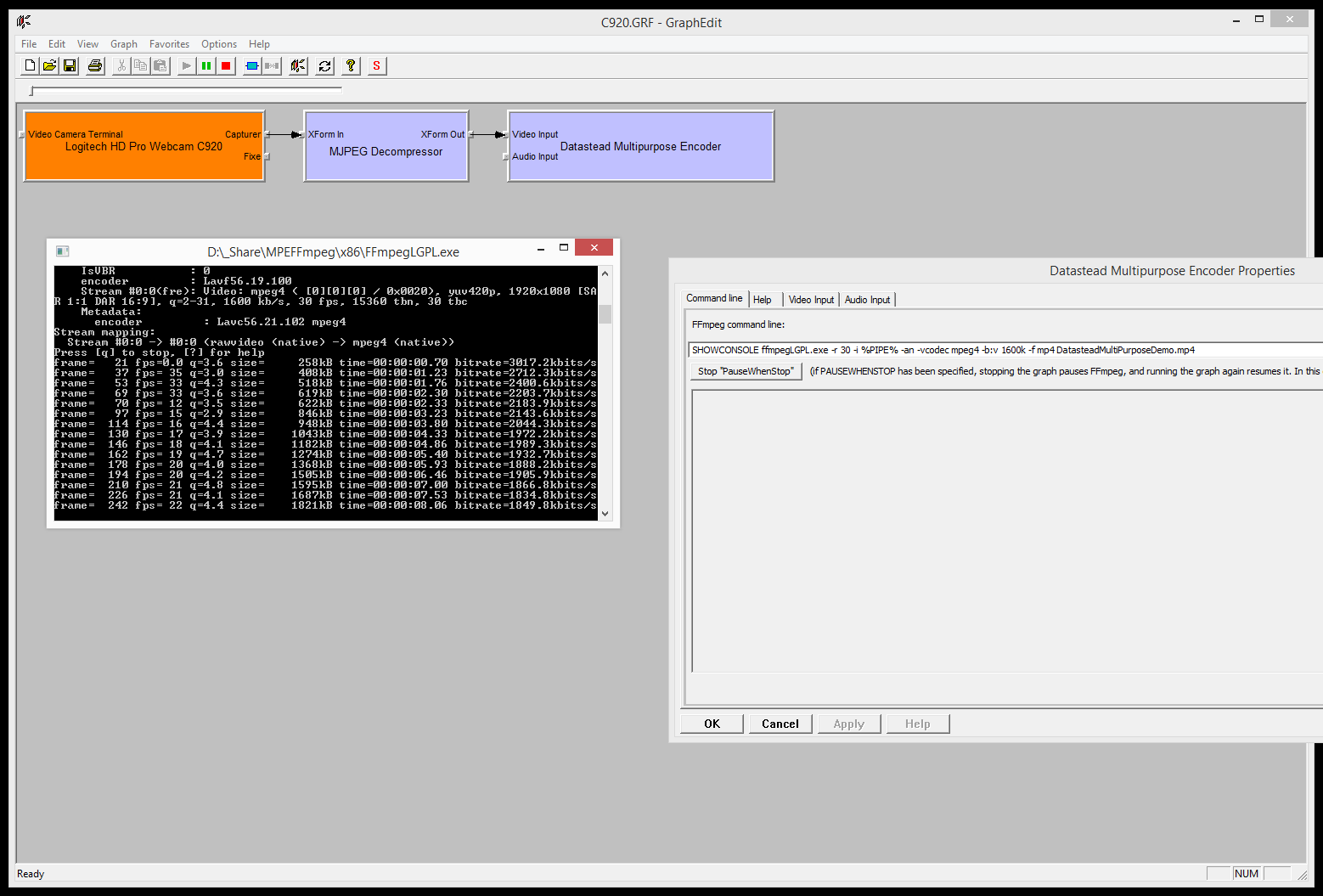
Screenshots
GraphEdit:
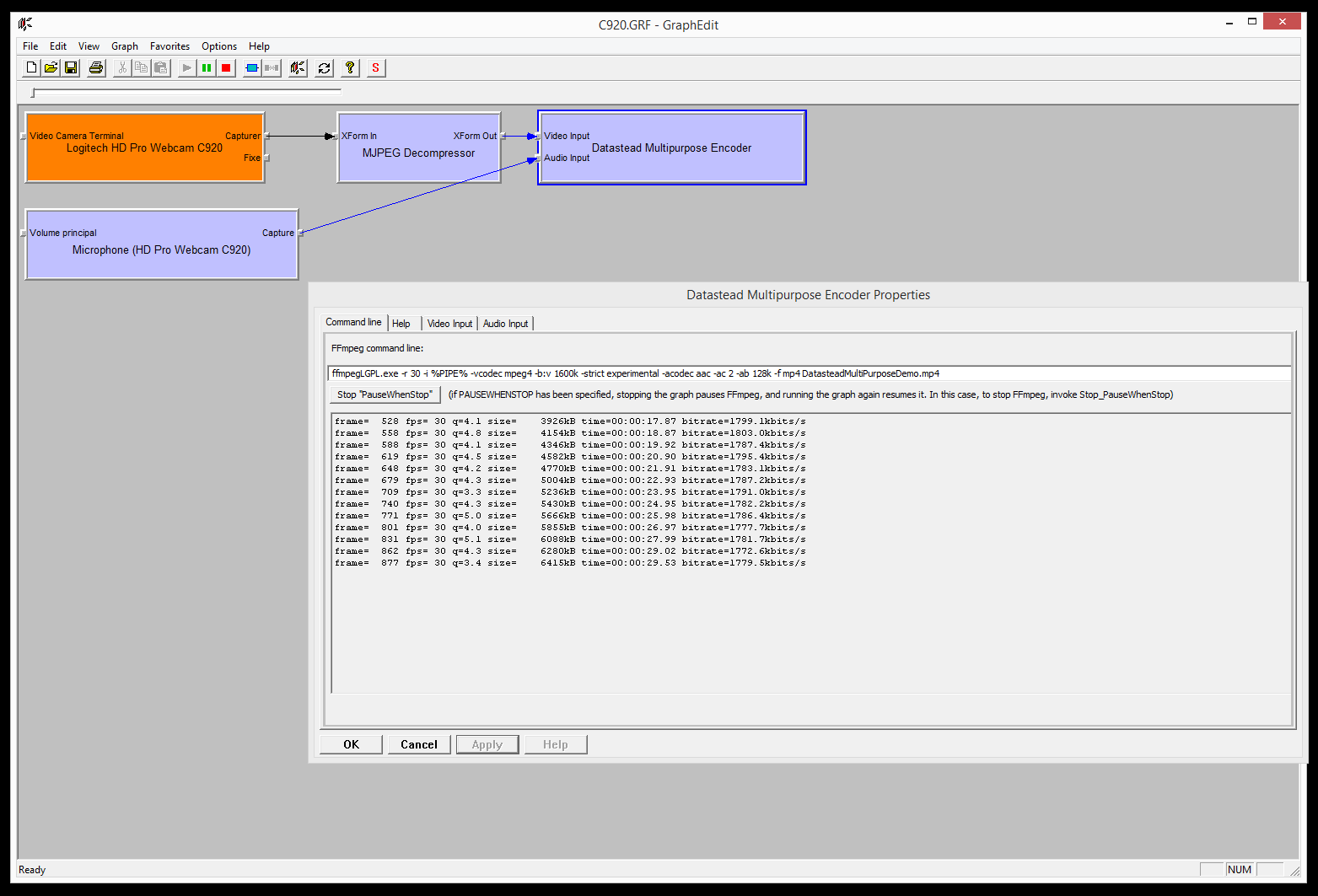
GraphEdit with the debug console: